Web UI Views
relay-tty offers several ways to view your sessions in the browser. Switch between them using the layout switcher in the top navigation.
Home (Session List)
The default view. Shows all active sessions as a list with:
- Session ID and command name
- Running status and uptime
- Last activity timestamp
- Throughput metrics (bytes/sec)
Click any session to open it in full terminal view.
Clickable links in terminal output
Links in the terminal are clickable in the full terminal view:
- OSC 8 hyperlinks — tools that emit explicit hyperlinks (
ls --hyperlink=auto, ripgrep, many build tools, Claude Code) render as clickable links. Because the tool declares the exact target, these are more reliable than pattern-matching. - Plain URLs —
http:///https://links detected in output open in a new browser tab. mailto:links — open your mail client.- File paths — clickable file paths (and
file://links) open in the in-app syntax-highlighted viewer, resolved on the machine running the session — not your browser. This includes slash paths (src/app.ts), dot-relative and absolute paths, and bare filenames an agent mentions (package.json,README.md). Line and column numbers (foo.ts:42:10,file://…/foo.ts#42:10) jump to that location. To avoid false underlines (e.g.Node.js), a detected path is only made clickable once the server confirms the file actually exists in the session's working directory.
Hovering a link shows its real destination so a link whose display text differs from its target is easy to spot. For safety, only http, https, mailto, and file schemes are ever opened — other schemes (such as javascript:) are ignored. Gallery thumbnails are passive: their links are not clickable.
Agent Dashboard
A mission-control view for monitoring AI coding sessions. Shows each running session as a card with:
- Agent name — automatically detected from the foreground process (Claude Code, Codex, Aider, etc.)
- Live sparkline — visual throughput indicator using rolling bps metrics
- Throughput stats — current bytes/sec and total bytes written
- Session metadata — working directory, uptime, last activity
Cards update in real-time via WebSocket session metrics broadcasts. Click any card to open the full session view.
Responsive layout: grid on desktop (up to 3 columns), stacked cards on mobile.
Grid Gallery
A tiled overview showing live terminal thumbnails for all sessions. Each cell renders a scaled-down live terminal.
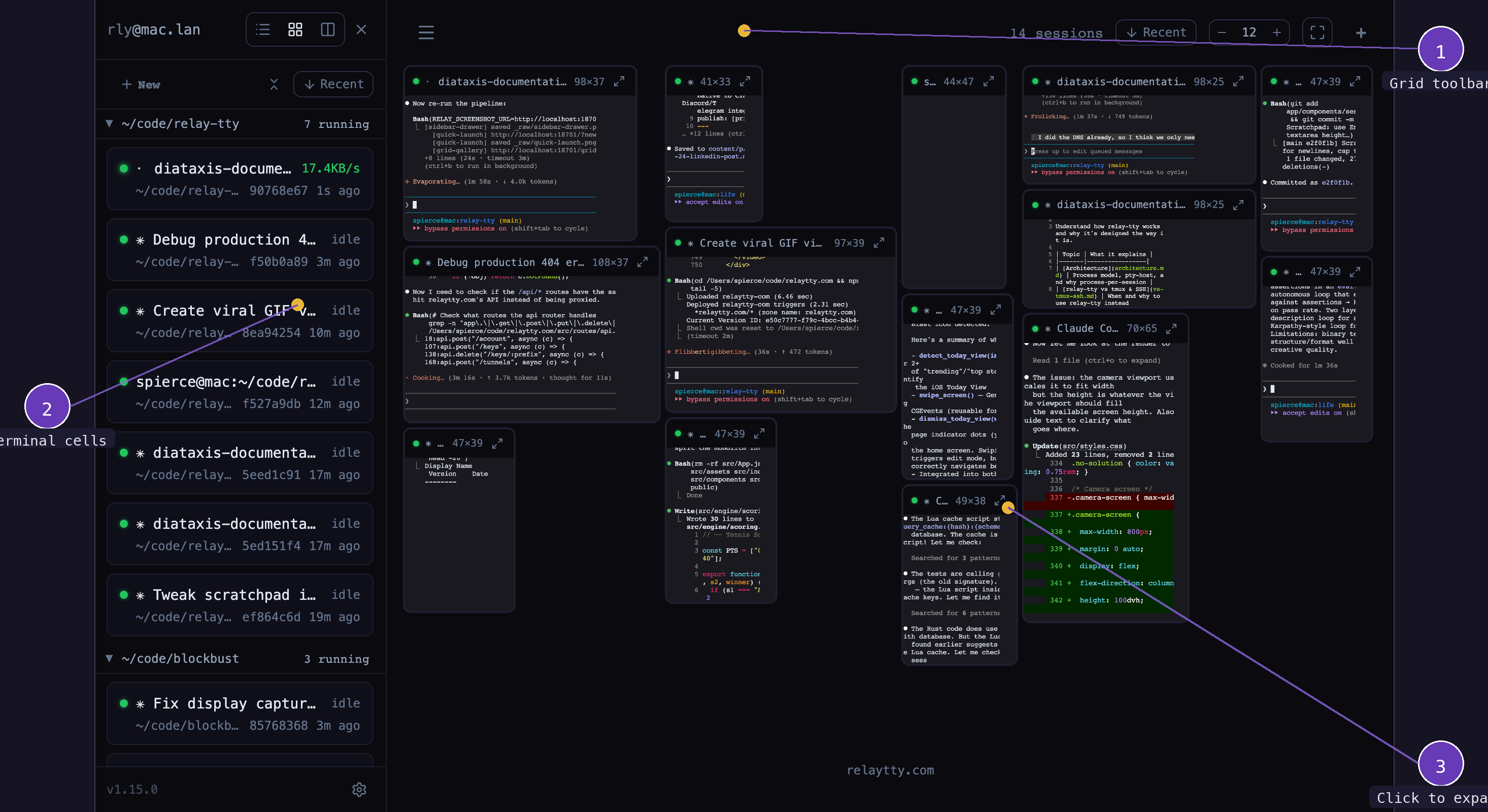
- Grid toolbar — sort sessions, toggle inactive, filter by project, create new sessions
- Live terminal cells — each cell renders real terminal output, scaled to fit
Project filter and recency
The project filter dropdown narrows the gallery to selected working directories. At the top of the dropdown, a Recent only toggle hides sessions whose last activity is older than a configurable window (default 24h). The duration accepts values like 30m, 2h, or 7d — press Enter or click away to apply; invalid values fall back to the default.
When the recency filter is on:
- Gallery cells only show sessions active within the window.
- Projects with no recent sessions disappear from the dropdown list, keeping it short. Your project selection is preserved — hidden projects reappear when the toggle turns off.
- The filter button shows a clock indicator (and a
Recent 24h-style label when no projects are selected) so it's obvious why sessions are hidden.
Both the toggle and the duration persist across reloads, and apply to the Grid, Lanes, and Tiles views alike.
- Thumbnails update in real-time
- Click a cell to select it for keyboard input
- Double-click a cell (or click the expand icon) to zoom it to full size
- Useful for monitoring multiple long-running processes at a glance
Picking a session from the sidebar
In Grid, Lanes, and Tiles the sidebar is a way to find a session inside the view rather than a way out of it. Clicking a session name keeps you on the current route:
- Grid and Lanes unzoom the currently zoomed cell and select the picked session's cell, which is the same state a direct click on that cell produces — so Cmd+N and the font-size shortcuts keep targeting it.
- Tiles focuses the pane already showing that session, or opens a pane for it (placed as a column after the focused pane, the way Cmd+D places a split) and focuses that.
If the session was hidden by the project filter, the recency filter, or the inactive toggle, the view relaxes whichever one was hiding it and leaves the others as you set them.
Double-clicking a session name goes one step further. In Grid and Lanes it selects the cell and then zooms it, exactly as if you had double-clicked the cell's title bar, and a cell that was already zoomed is replaced by the new one. In Tiles, which has no zoom, a double-click does the same as a single click. The single click still lands instantly; the double-click is simply "select, then zoom" in quick succession.
On the single-session page, Home, Agents, and Settings the sidebar still navigates to the full session view.
Per-session font size
Each session has its own font size, adjustable with Cmd+= / Cmd+- (or pinch-to-zoom on touch devices). The font size is persisted per session and shared across all views.
When you change font size, the terminal dimensions (columns and rows) are recomputed to fit the same container area at the new cell size — the container stays fixed while the text gets larger or smaller. A SIGWINCH is sent so the running program redraws at the new dimensions.
Lanes View
Side-by-side terminal panels in uniform cells. Each lane shows a different session.
- Adjust lane width and height from the toolbar
- Click a cell to select, double-click to zoom
- Per-session font size works the same as in Grid (Cmd+=/-, pinch-to-zoom)
- Useful for comparing output or watching related processes
Switching Views
Use the layout switcher icon in the navigation bar to toggle between Home, Agents, Grid, and Lanes views.
Desktop
When the host has a VNC server on port 5900 (macOS Screen Sharing, for example), a Desktop entry appears in the layout switcher and sidebar header. It opens the host's screen in the browser, signed in with the host's own account. See Remote Desktop for setup and limits.