Getting Started
This tutorial walks you through installing relay-tty, creating your first terminal session, and accessing it from a web browser. By the end, you'll have a terminal running in your browser that you can disconnect from and reconnect to at will.
What you'll need
- macOS or Linux (Windows users: use WSL)
- Node.js 18+ (for npm install) or just
curl(for the install script)
Step 1: Install relay-tty
curl -fsSL https://raw.githubusercontent.com/ddrscott/relay-tty/main/install.sh | bashVerify the installation:
relay --versionStep 2: Create a session
relay bashThis creates a new terminal session and attaches you to it locally. You're now inside a PTY managed by relay-tty. Type some commands — ls, htop, whatever you like.
Detaching
Press Ctrl+] to detach from the session. The session keeps running in the background.
Step 3: Start the web server
Open a new terminal (or detach from your session first) and start the server:
relay server startYou'll see:
relay-tty listening on http://localhost:7680Step 4: Open in your browser
Navigate to http://localhost:7680. You'll see a session list showing your running session. Click it to open the terminal in your browser.
Everything you typed in Step 2 is already there — relay-tty replays the output buffer on connect.
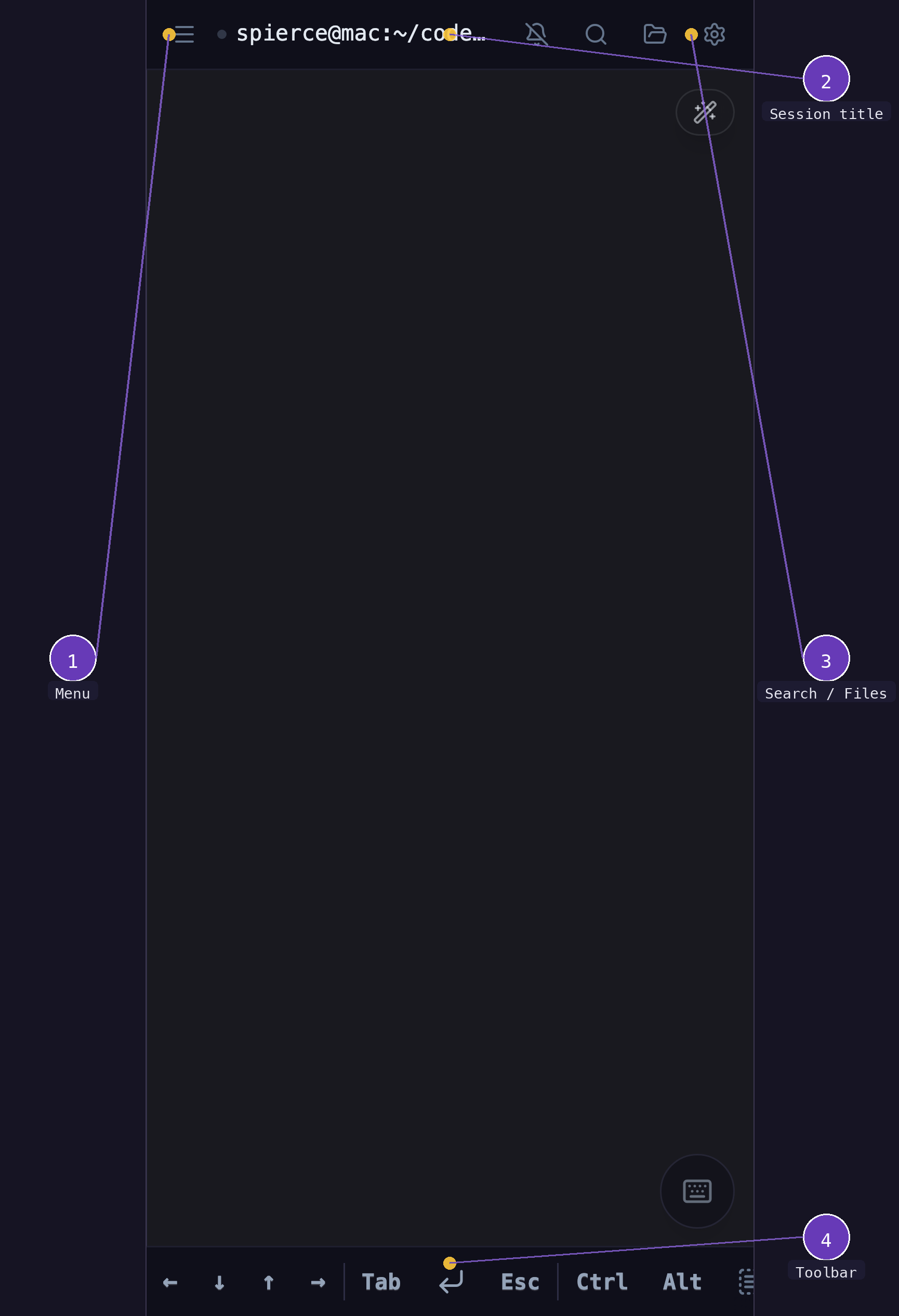
- Menu — opens the sidebar drawer with session list
- Session title — click it to open the sidebar and switch sessions
- Terminal — full interactive terminal (touch scrolling, pixel-smooth momentum)
- Toolbar — arrow keys, Tab, Esc, Ctrl, Alt modifiers
Step 5: Interact from the browser
Type in the browser terminal. You're interacting with the same PTY session. If you still have the CLI attached, both see the same output in real time.
Step 6: Detach and reconnect
Close the browser tab. The session is still running. Open the URL again — your session is right where you left it.
From the CLI, you can also reattach:
relay attach <session-id>List all sessions:
relay listWhat just happened?
relay bashspawned a detachedpty-hostprocess (a small Rust binary) that owns the terminalrelay server startlaunched a web server that discovers running sessions- Your browser connected via WebSocket to the server, which bridged to the pty-host
- Output was replayed from pty-host's 10MB ring buffer — that's why you saw your previous commands
The session survives server restarts, browser disconnects, and even closing your laptop. It runs until the shell exits or you explicitly stop it with relay stop <id>.
Next steps
- Access from your phone — use
--tunnelfor public access - Share with someone — generate a read-only link
- Session management — create, stop, and organize sessions